
Picture
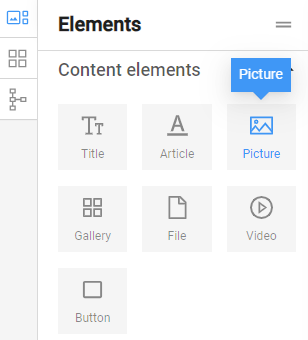
The "Picture" element allows for inserting single images into web pages. This element enables users to add graphic content such as photographs, illustrations, logos, and other visual elements to the web page.
To use the element, click on it and drag it to the desired location on the page while holding the left mouse button.
After dragging the element to the desired location, it looks like this:
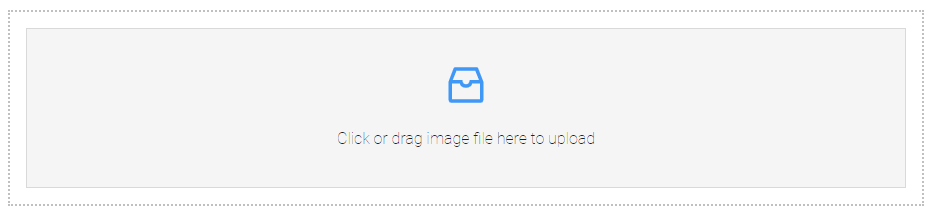
There are several options for uploading a photo:
- By swiping the photo directly from the computer;
- By double-clicking on the item, then you need to select the desired file;
- By selecting an already uploaded photo from the media library.
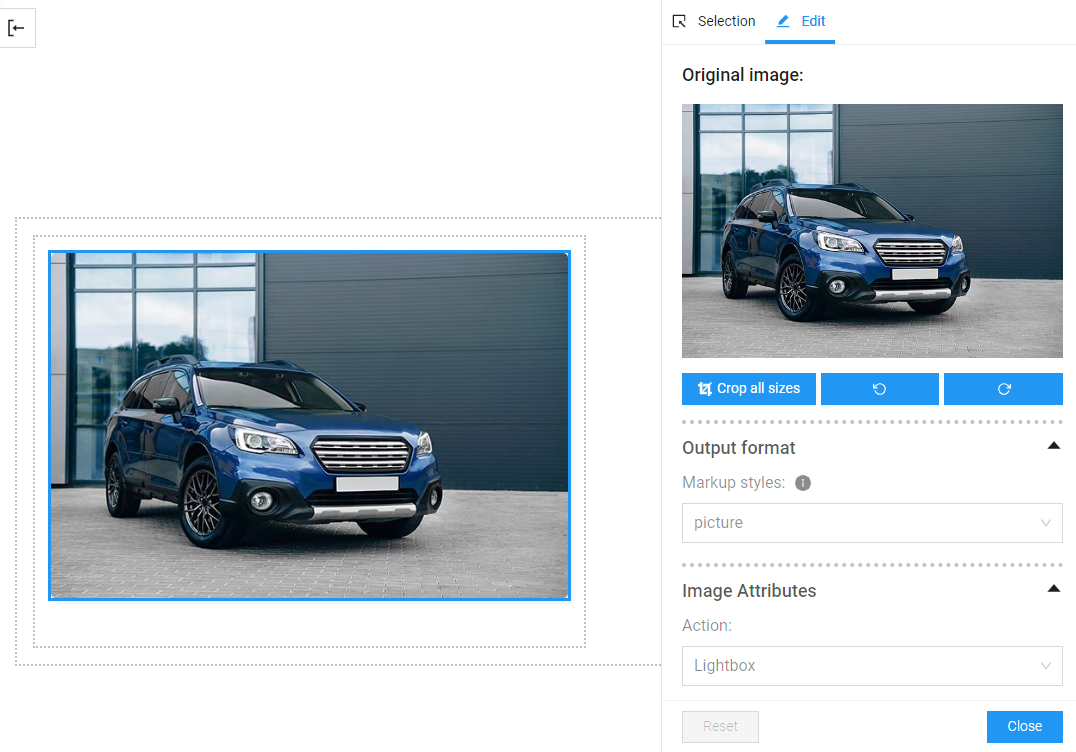
Once the image has been uploaded, the following additional adjustments can be made:
Using the Crop all sizes button, the size of the photo can be reduced or only part of the photo can be cropped. The other two buttons are used to rotate the original image left or right.
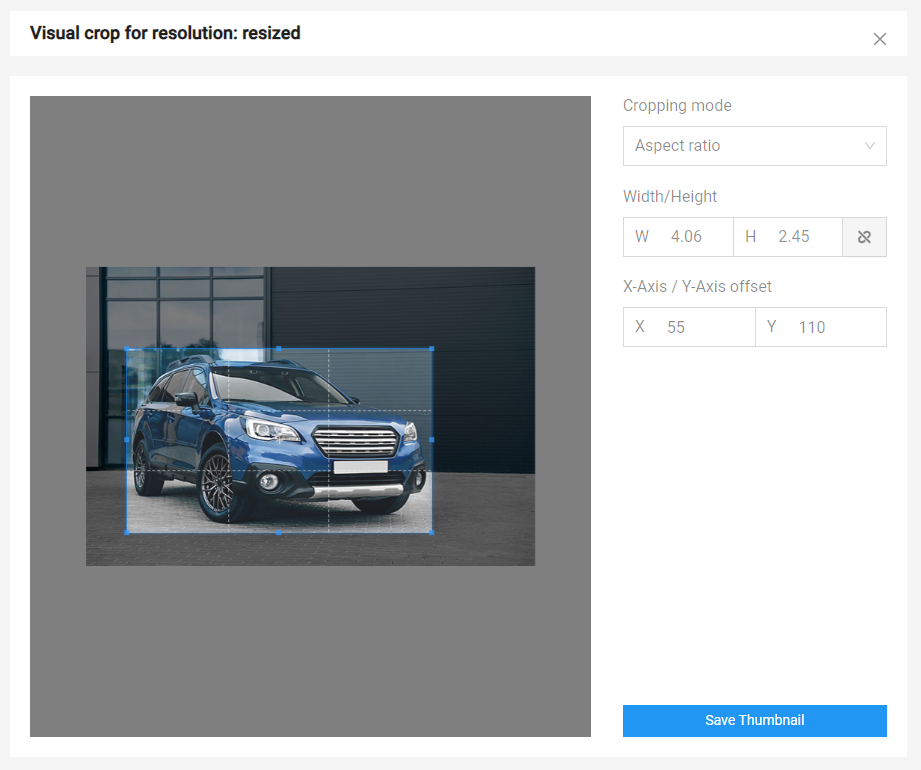
After selecting the Crop all sizes button, an editor opens, through which the necessary edits can be applied to the photo.
"Image Attributes" submenu:
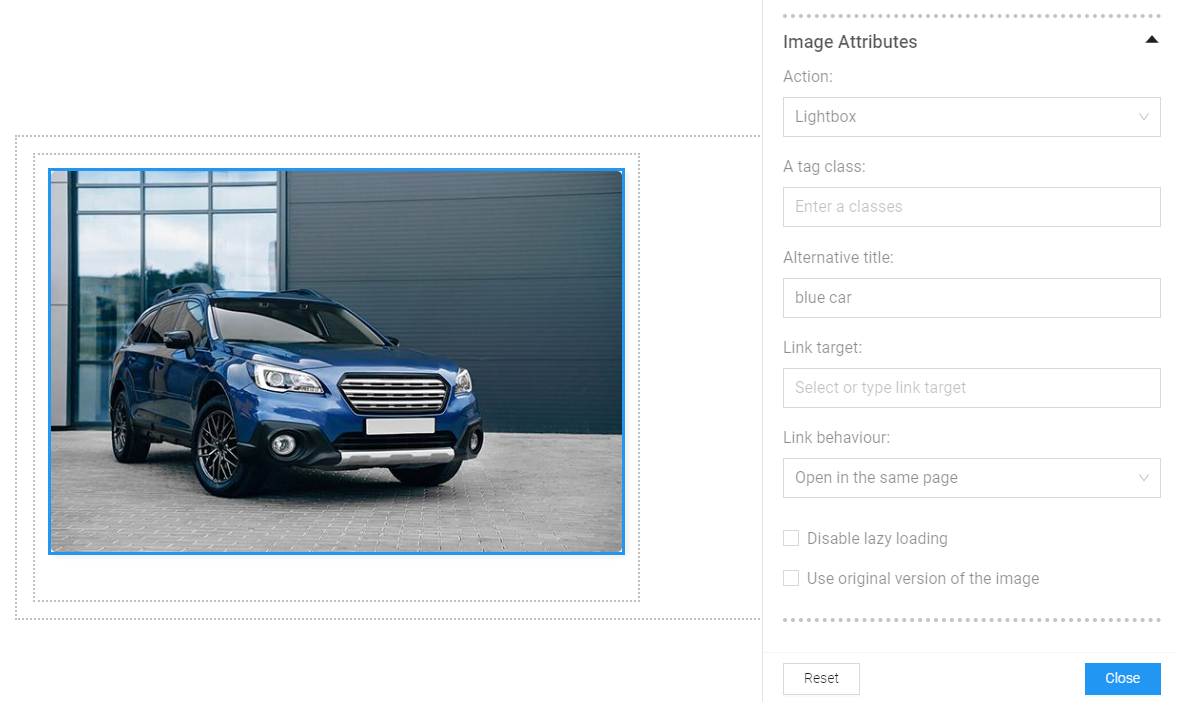
Action – this setting allows you to choose what action happens when you click on the photo.
- Link – A link can be directed to an external page or to one of the existing pages on the site. This is done through the "Link target" menu options.
- Lightbox – The photo opens, centered and enlarged.
- None – Clicking on the photo does not perform any action.
Alternative title – this attribute sets a title for the photo. It should be directly related to what the picture depicts. Proper use of the alternative title helps improve accessibility, SEO optimization, and user experience on the website.
Link behaviour – these settings determine how the photo reacts when you click on it.
- Open in the same page
- Open in a new window
- Open in the parent frame
- Open in the full window
Note: The link behavior works correctly only if Action is set to 'Link' beforehand.
Disable lazy loading – Lazy loading is a technique where the loading of content is delayed until the user approaches that content. This helps speed up the loading of web pages, saving resources and improving the user experience. Instead of loading all elements on the page at once, lazy loading allows only those elements that are visible or near the viewport to be loaded.
(Note: If this option is selected, the "lazy loading" technique will be turned off, which will slow down the loading of web pages in most cases, so it is best to avoid using it.)
Use оriginal version of the image – this option will display the original image instead of the resized one in "Lightbox" mode.
