
Gallery
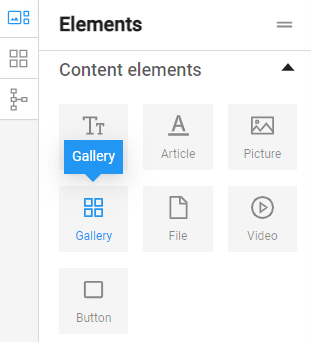
The "Gallery" element is used to insert a group of images into web pages. This element allows the user to add multiple photographs, illustrations, logos and other visual elements to the web page, allowing them to be bulk edited and arranged.
To use the element, click on it and, while holding the left mouse button, drag it to the desired location on the page.
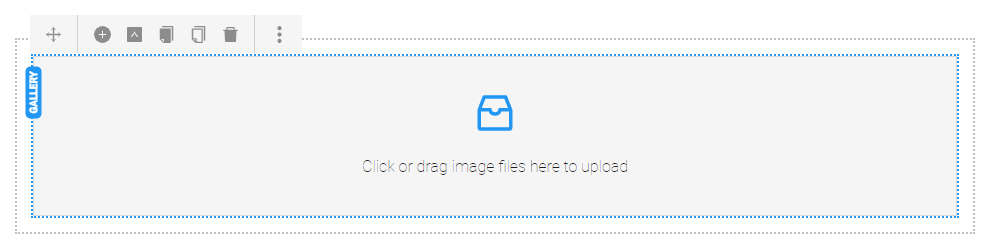
After placing the item, it looks like this:
Add a gallery image
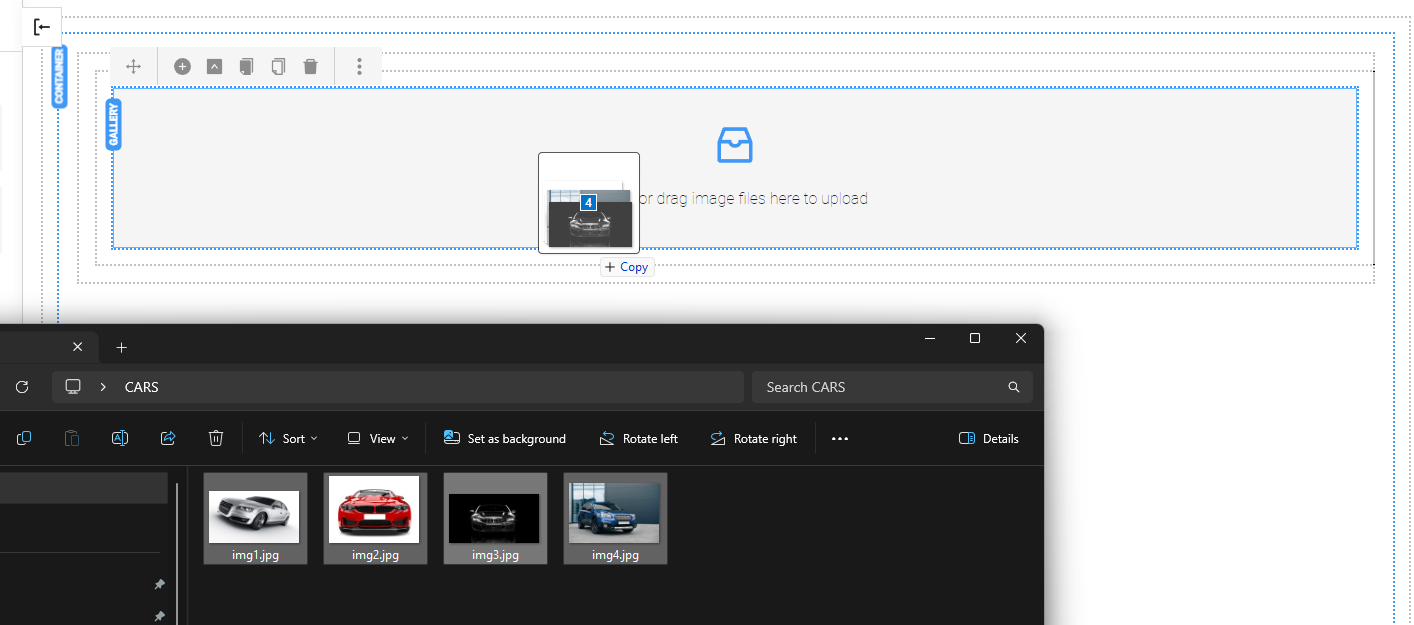
- A group of images can be directly added by dragging and dropping the files into the "Gallery" element area.
- Another option is to double-click the item to open the settings window and select and upload photos from the files on the computer.
- It is also possible to link to an image that has been published elsewhere – by filling in a link in "File by url".
- To add an image that has already been uploaded to the website, it is selected from "Recent uploads" or from the media folders, which can be accessed via the blue "Open Media" button.
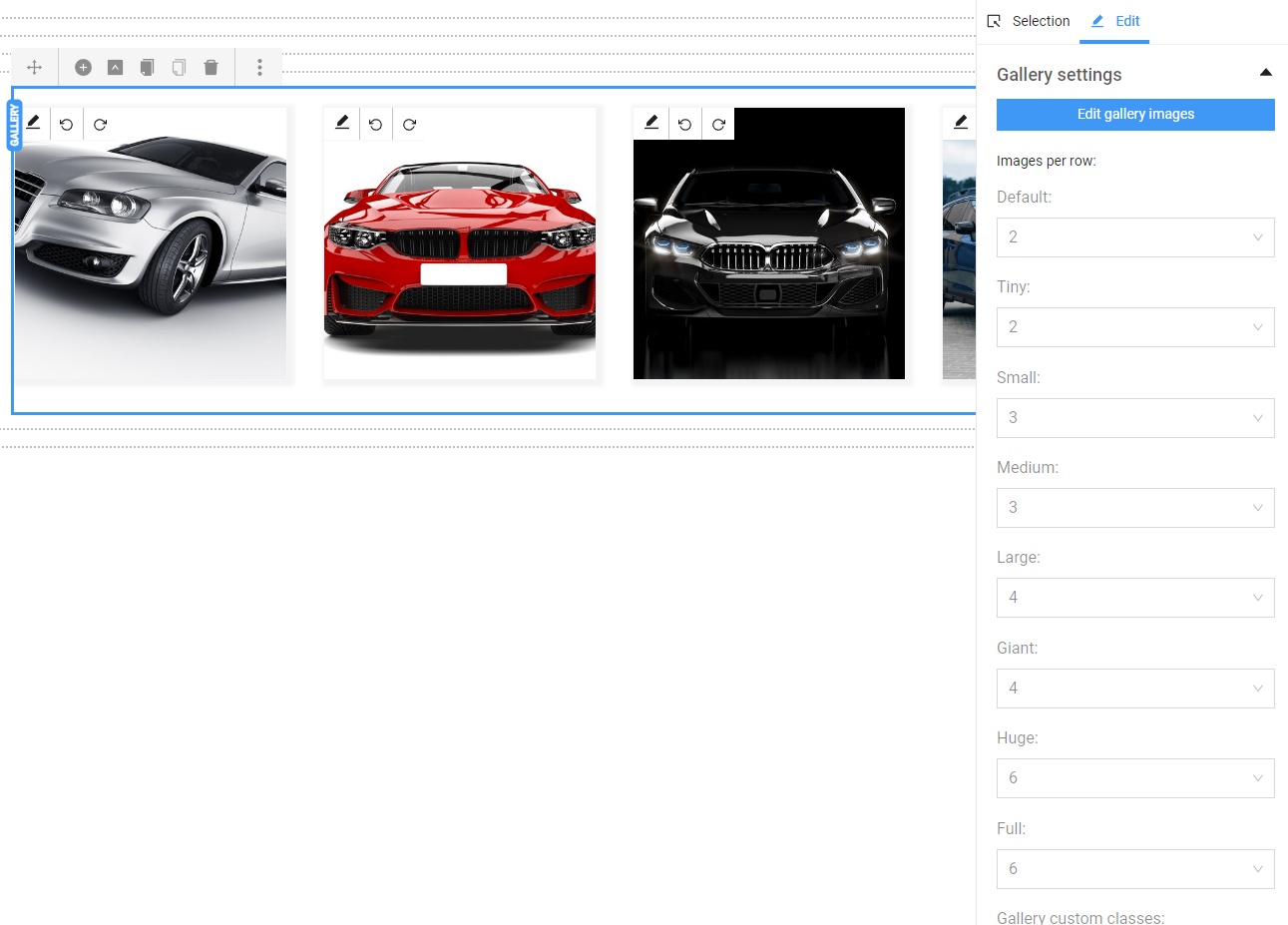
Images are now in the gallery. Editing options are opened by double-clicking.
Edit gallery images – A new window opens, displaying all the images that are part of the gallery. Below them are properties whose values can be changed. From this window, images can be deleted (using the trash can icon) and rearranged by dragging and dropping.
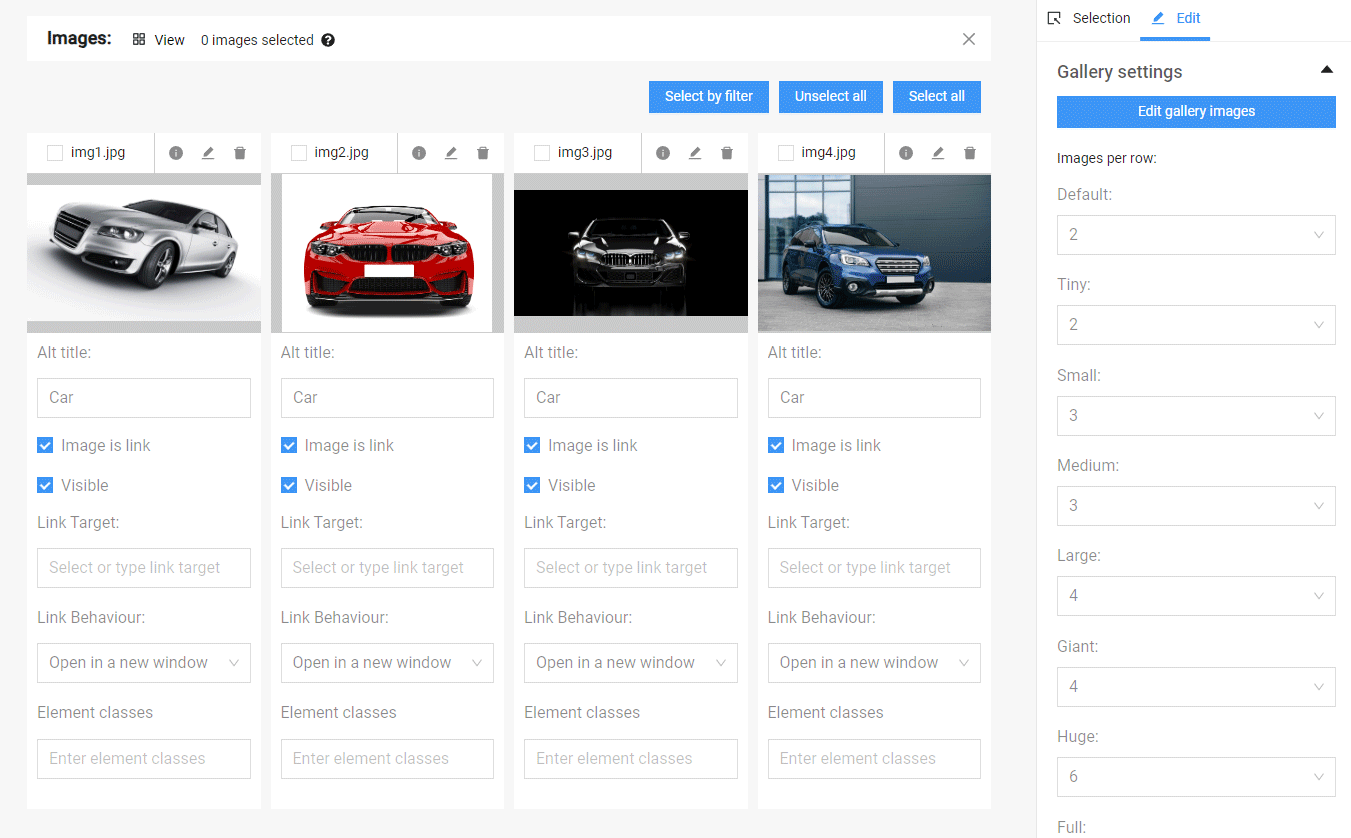
Alt title – alternative title of the photo. By default, the uploaded file names are initially used. The title should be directly related to what the picture itself depicts. Proper use of alternative titles helps improve accessibility, SEO optimization, and the overall user experience of the website.
Image is link – if selected, a hyperlink can be added, making the photo a link to another address when clicked. The link is entered in the "Link Target" field and can be directing to a page on the site or an external resource.
Link Behavior – specifies where the link opens – here the options are: in the same page, in a new window, in the parent frame or in the full window.
Visible – if unchecked, the photo will be part of the gallery and visible from the admin panel, but not visible on the website.
More options
Multiple images editing – This is done by checking the desired photos, and there is a "Select аll" button to select all of them. Similarly, you can unselect all by using the "Unselect all" option.
Simultaneous applying of the same changes – A property can be edited simultaneously for all selected images by clicking the small blue icon next to the property name after making the change. This action copies the entered value or changed option to the other selected images.
Number of images per row
In addition to options for editing properties of individual or groups of images, there are also fields that affect the gallery as a whole. They are located below the "Edit gallery images" button in the "Edit" section. From the menu on the right under "Gallery settings", there are available values for the number of images in the gallery per row for various types of resolutions.
For mobile devices (phones and tablets), they are:
- Default (up to 479 px);
- Tiny (480 px – 639 px);
- Small (640 px – 759 px);
- Medium (760 px – 991 px).
For large tablets and desktop computers:
- Large (992 px – 1199 px);
- Giant (1200 px – 1363 px);
- Huge (1364 px – 1519 px);
- Full (from 1520 px and above).
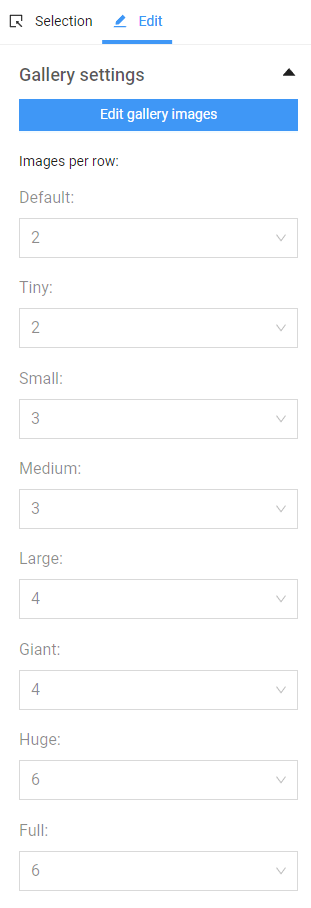
To display images well according to the width of the screen, it's good to consider how many images should be arranged per row for optimal visibility taking into account their size too. Generally, for mobile phones, it's advisable to set 1 or 2 per row, as having more may cause them to shrink too small and not display well. For wider screens, more images per row can be arranged since there's more space available.
More settings
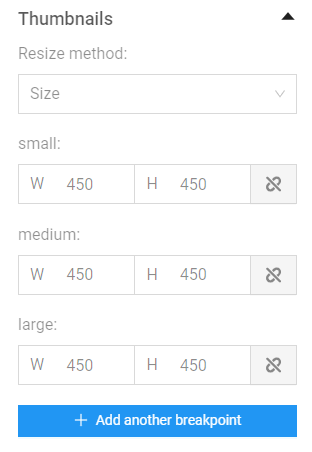
Resize method – allows selecting and resizing the images to arbitrary dimensions (Size) or resizing while maintaining the aspect ratio (Aspect Ratio). By default, the images in the gallery are cropped to squares with a ratio of 1:1, but another aspect ratio can also be selected.
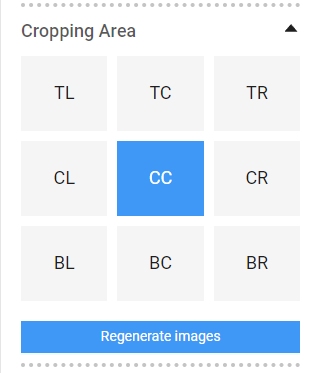
Cropping Area – images in the gallery can be resized. Different areas for automatic cropping of the images can be selected here. The default area is the central one - CC (center center), but other cropping options are also available: TL (top left), TC (top center), TR (top right), CL (center left), CR (center right), BL (bottom left), BC (bottom center), BR (bottom right).
Regenerate images – With this button, the image can be reverted to its original size uploaded into the system.
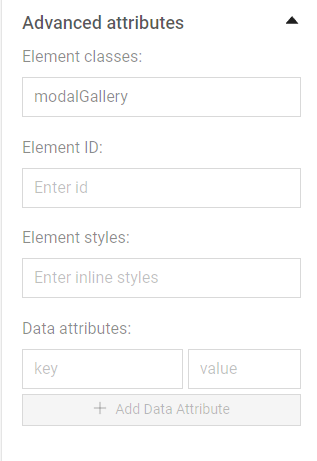
Advanced attributes – include adding classes, IDs, styles, attributes. They are used rarely and it is recommended to consult with the web developer for their usage.
Open an image in lightbox

The plus icon on the image indicates that clicking on the image will open it in "Lightbox" mode (modal window), where the selected image is displayed in full size on a slightly transparent background in the same page. In this mode, you can navigate through other images in the gallery by using the left arrow (for the next image) or the right arrow (for the previous image).
Note: The mode is active by default as long as the "Image is link" option is checked.
