Article
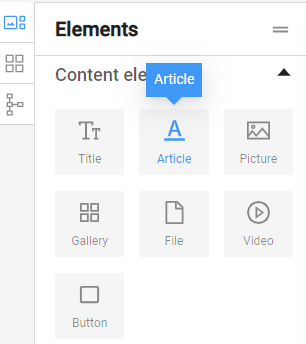
The "Article" element allows the user to add text paragraphs to their page.
In order to use the element, it is necessary to click on it and, holding the left mouse button, drag it to the desired place on the page.
Once added to the page, the "Article" element looks like this, coming with a default sentence: "This is the default text field."

Double-clicking on the bar activates content filling mode, allowing you to enter the desired text.
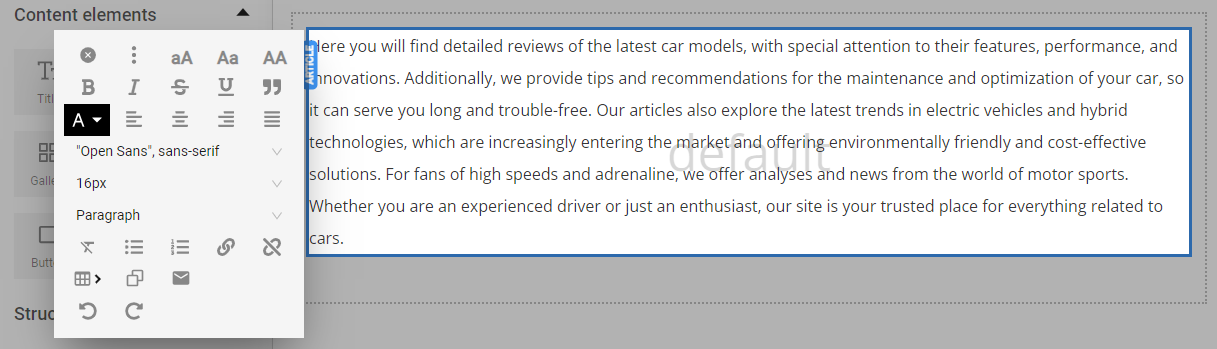
As you fill in the text, an options panel appears on the side, providing access to standard text formatting options. This panel is used when different formatting and/or the insertion of special elements is needed in the text.
(Note: Before applying any text settings, ensure the desired portion of the text is pre-selected.)
Add a link
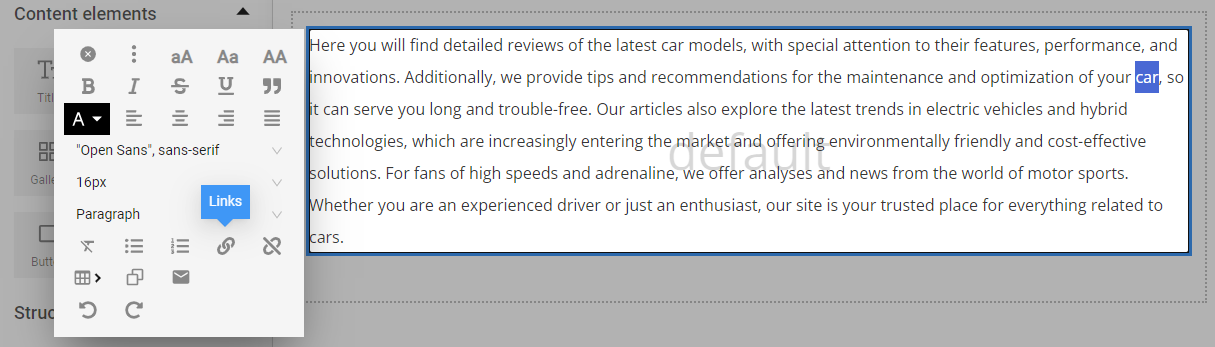
Highlight the text you want to hyperlink -> use the "Links" menu.
A window appears where you can configure the settings for the hyperlink.
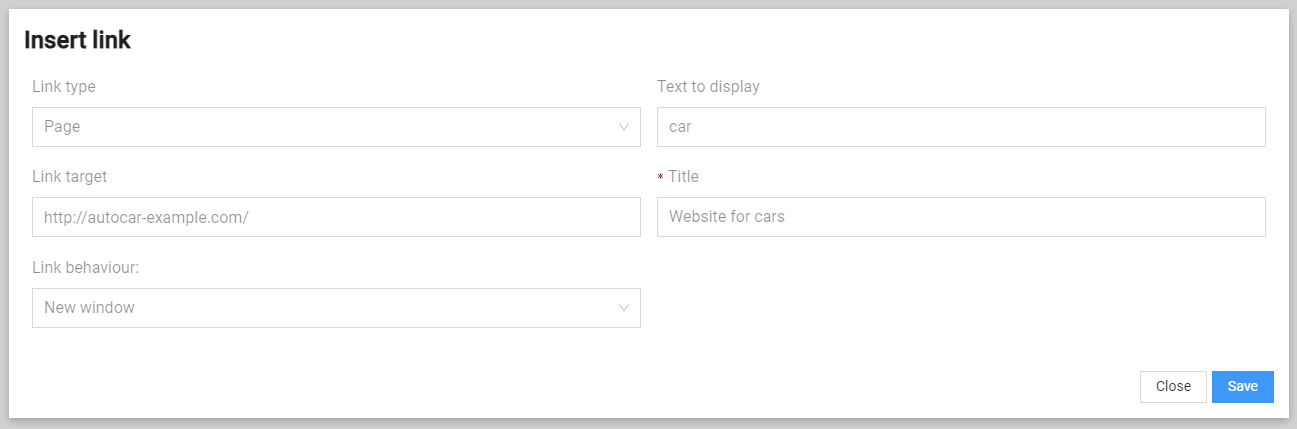
Link type – whether the link to be for a webpage or a phone number.
Link target – you can choose where to link from a list of website pages or enter an external link.
Link behaviour – you can choose where to open the link: either in the 'Current window' or in a 'New window'
Text to display – here is the text of the link that, when clicked, will open the link target.
Title – the text that appears when the mouse hovers over the link. If we have selected a page from the same site, the title is automatically loaded from the SEO title of the page itself. If the link is to an external site, an informative title for the external page should be added.
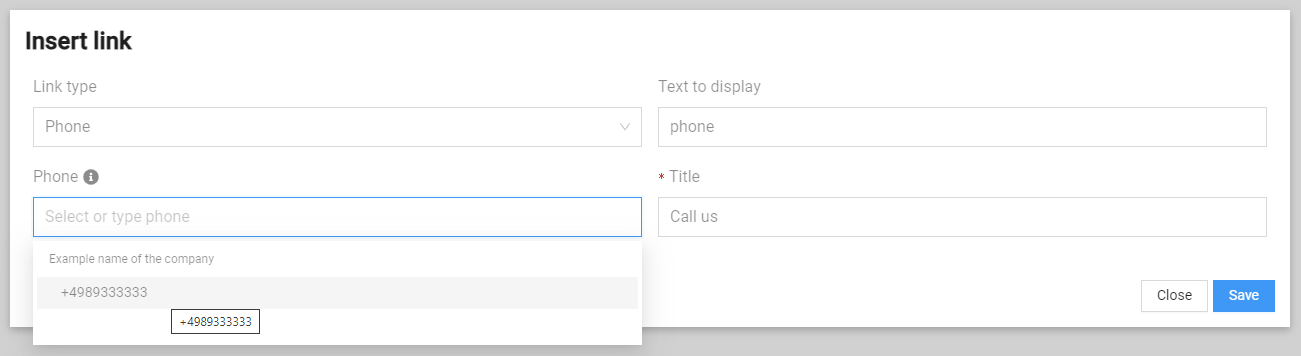
If Link type: Phone is selected, a Phone field is displayed, allowing selection of a phone number from those already entered in the "Company Data" section of the administration.
Add company data via snippets
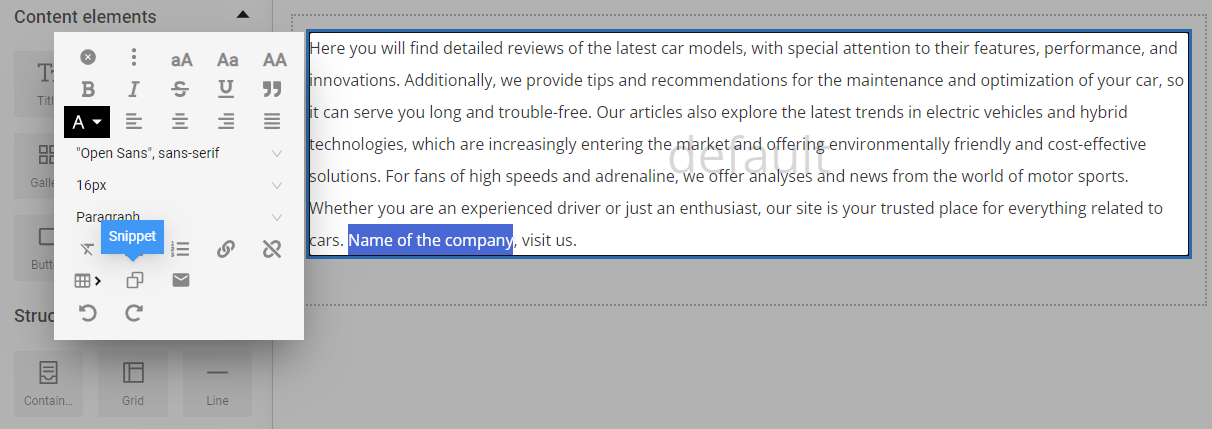
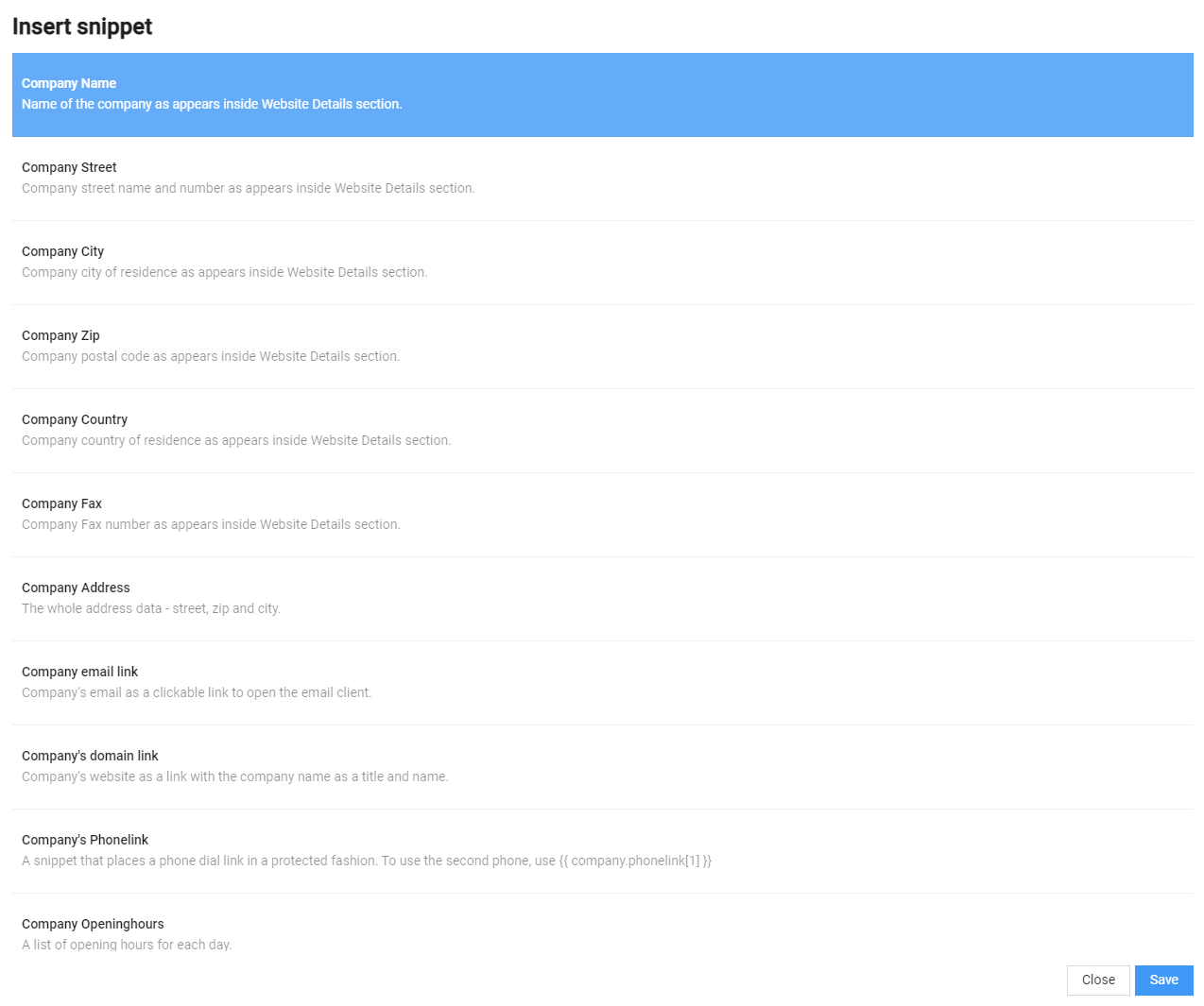
In the "Article" element, various company details can be added, which are previously saved in the administration's "Company Data" section. It is recommended to use customer data on the website through this option to ensure automatic updates across the website in the future.
A list of data that matches the data in the "Company Data" section appears. These are, for example: company name, address details, fax, etc.
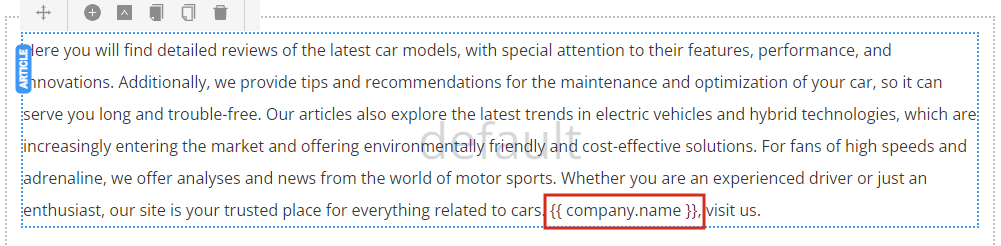
In the page content editing panel, this data is visualized as text between curly braces. In the example: {{ company.name }}, but when the page is published, the actual site will display the filled-in company name information from "Company Details".