Pages
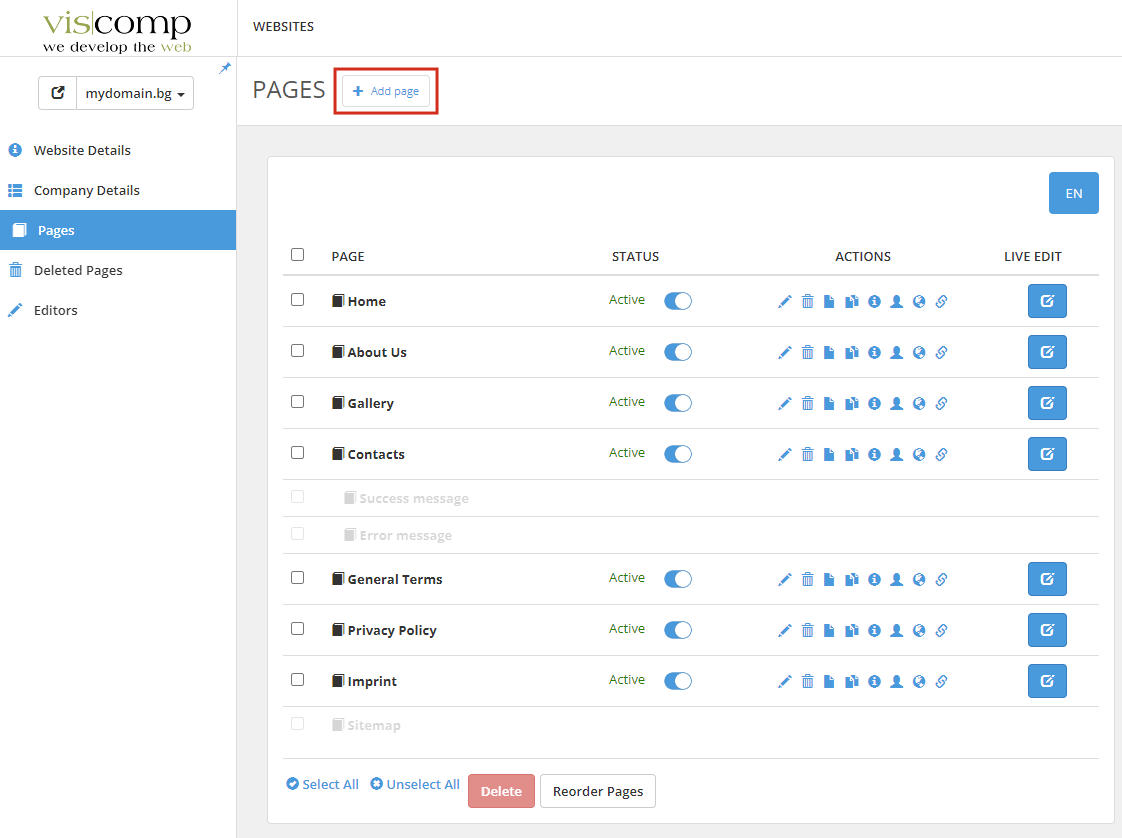
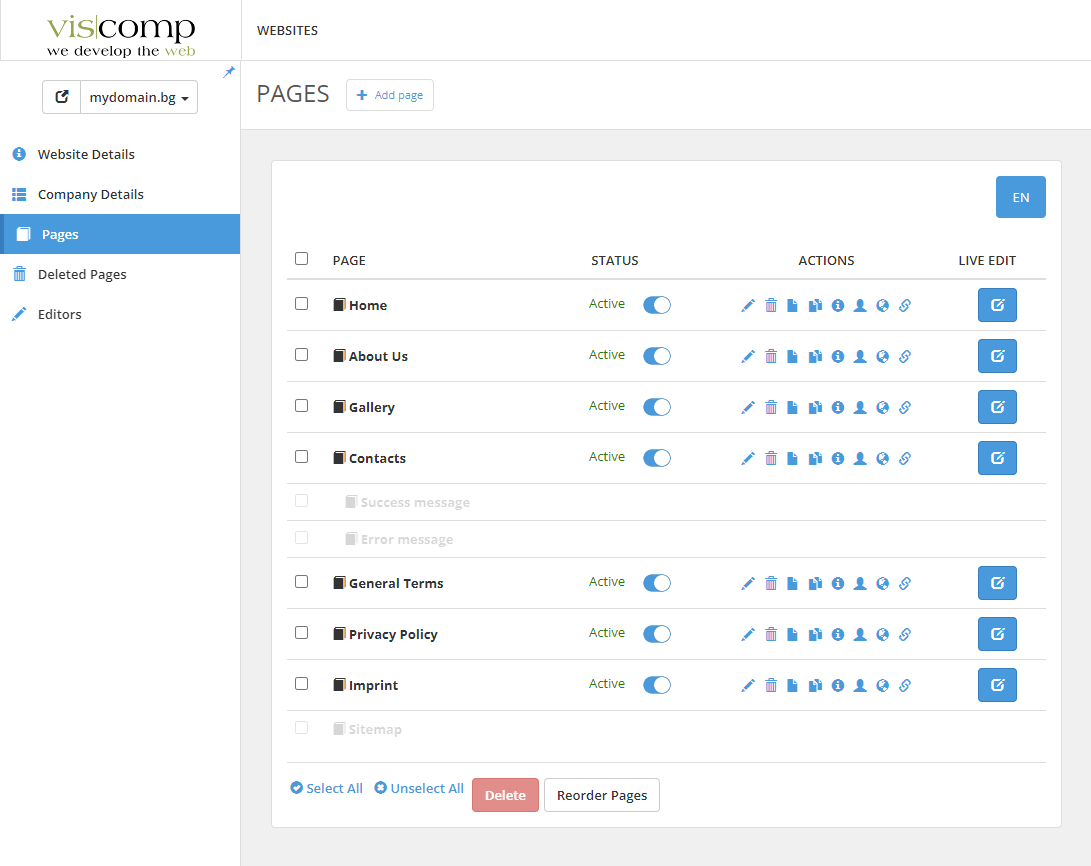
The Pages tab contains a list of all the pages on our website. From here, we can change the settings of the pages and edit their content.
Edit page content
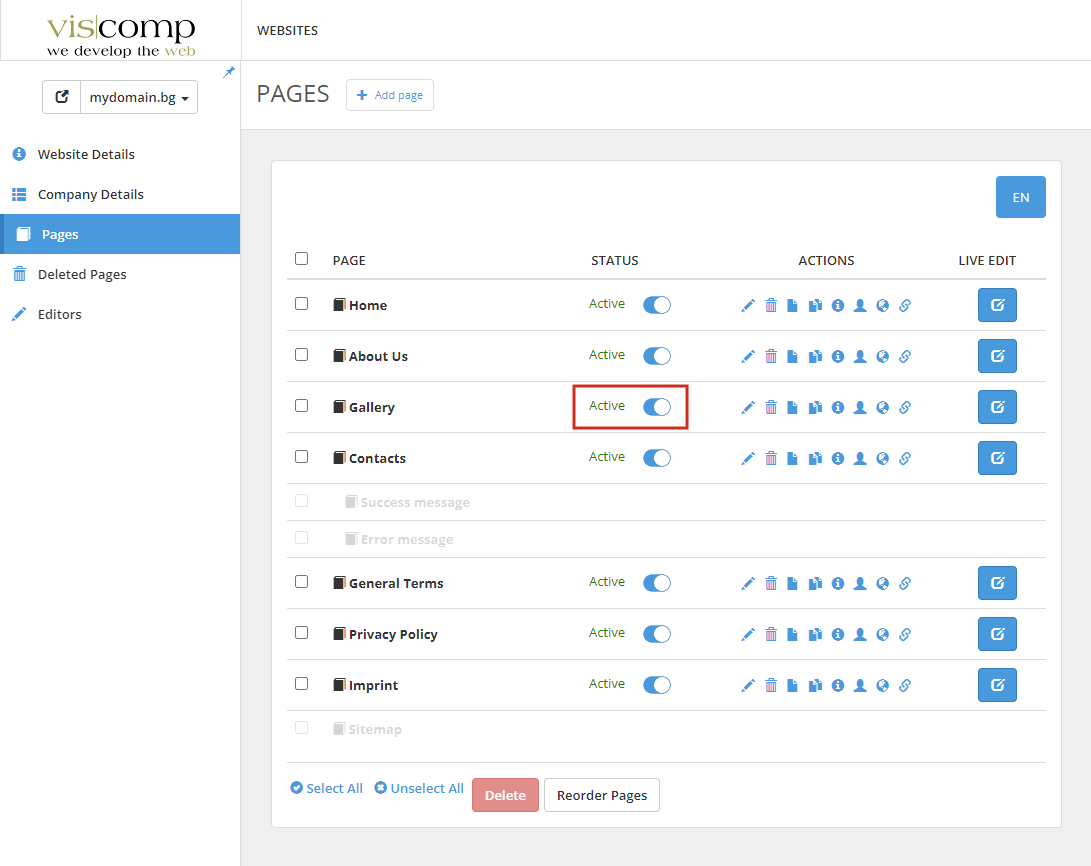
We can edit the content of a specific page by clicking the button in the Live Edit column. For example, to edit the content of the "About Us" page, we would click the button as shown in the picture:
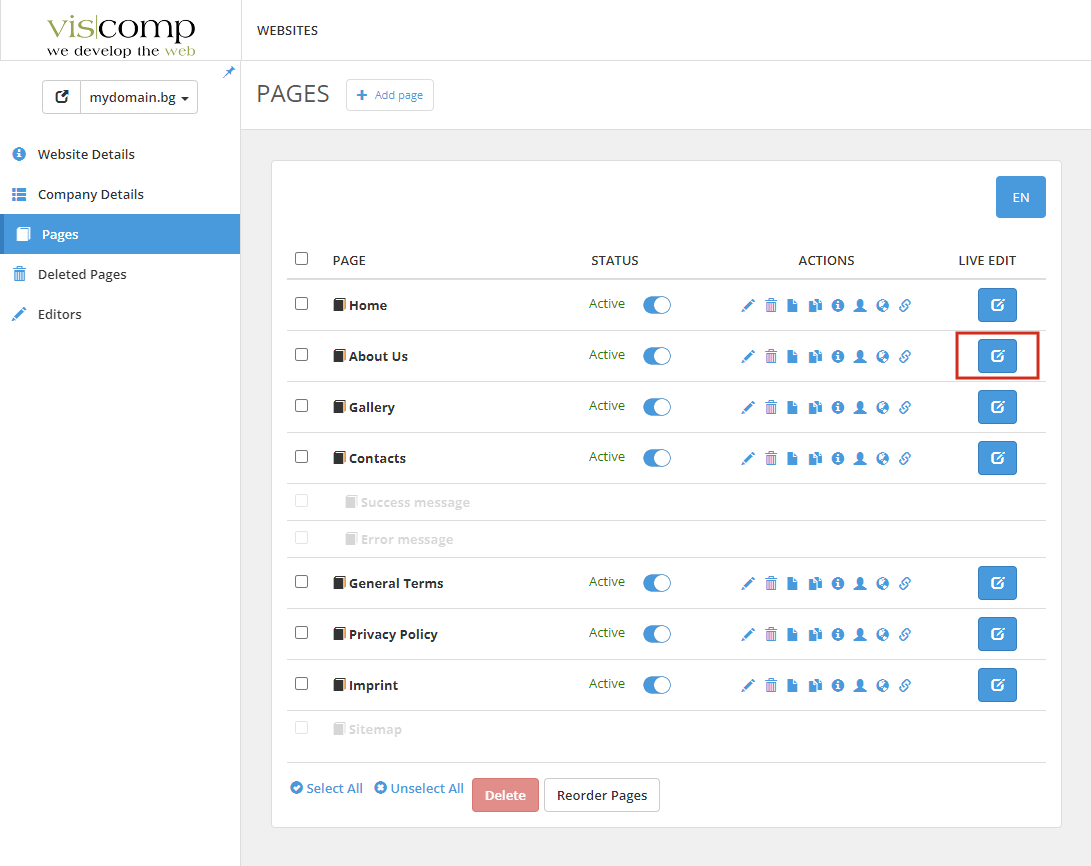
After pressing the button, a new tab opens in the browser where we can directly edit the content of the page. More information on editing content can be found here.
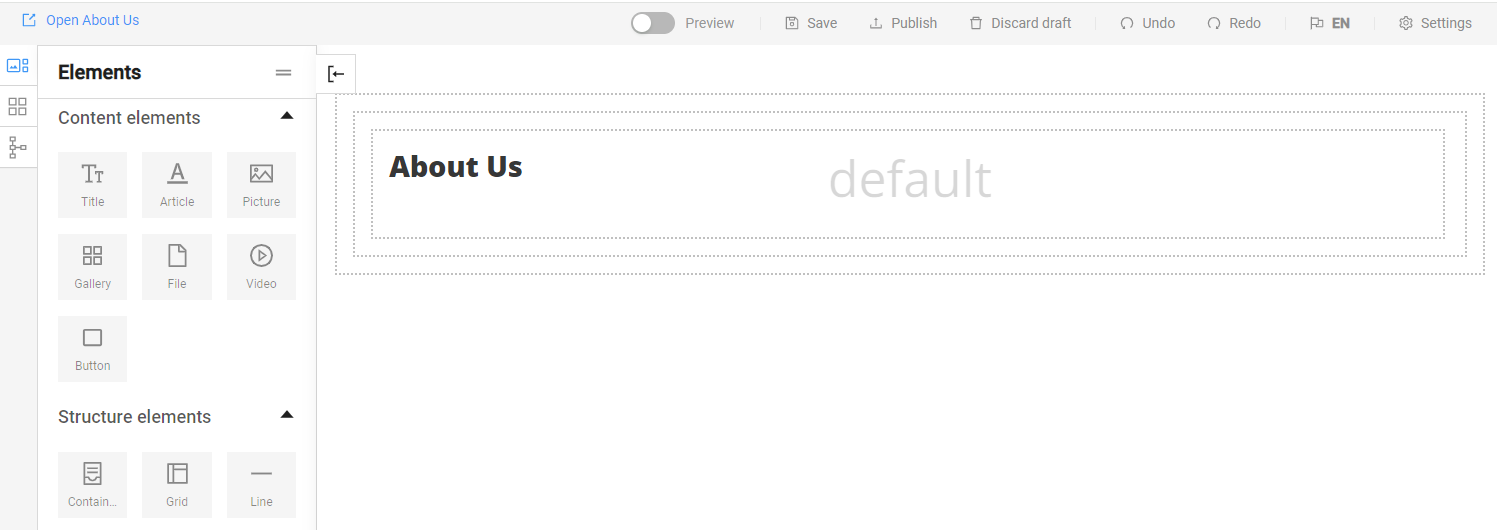
Page settings
For each page we can manage its settings.
Active/Inactive page
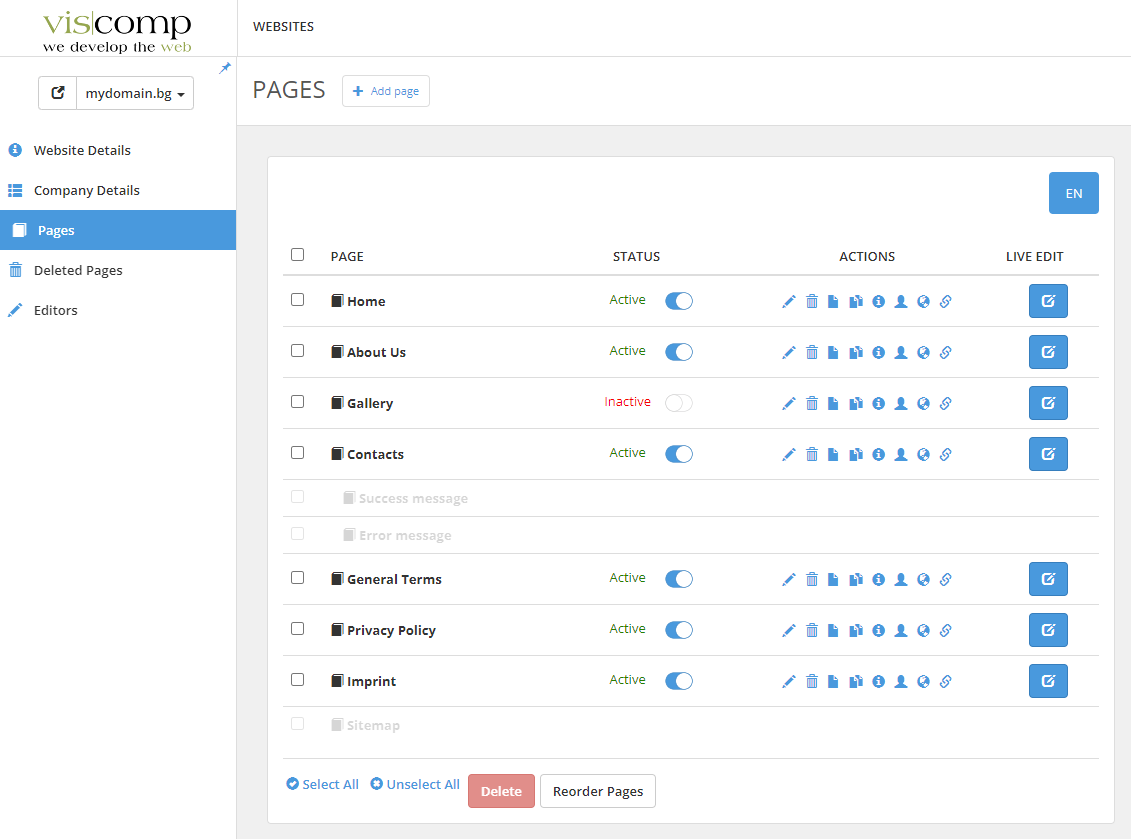
We can enable or disable a given page using the button in the Status column. If we choose to make a page active, it will be visible on our website. If it is inactive, it will not be visible on the website.
The picture shows what the list of pages looks like when the Gallery page is inactive:
Delete a page
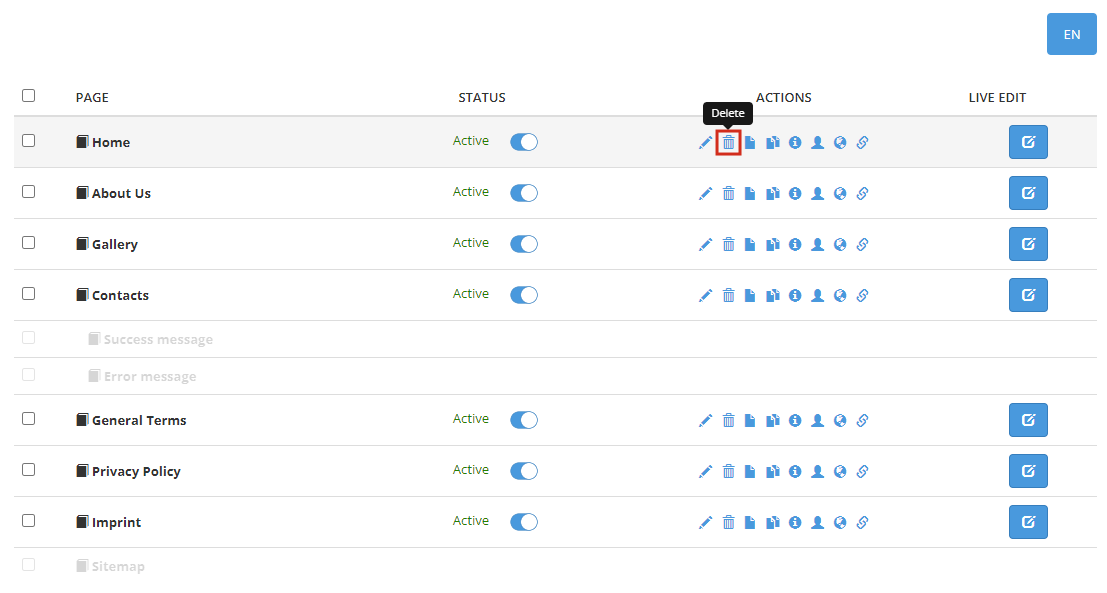
A page can be deleted from the delete option:
Edit page data
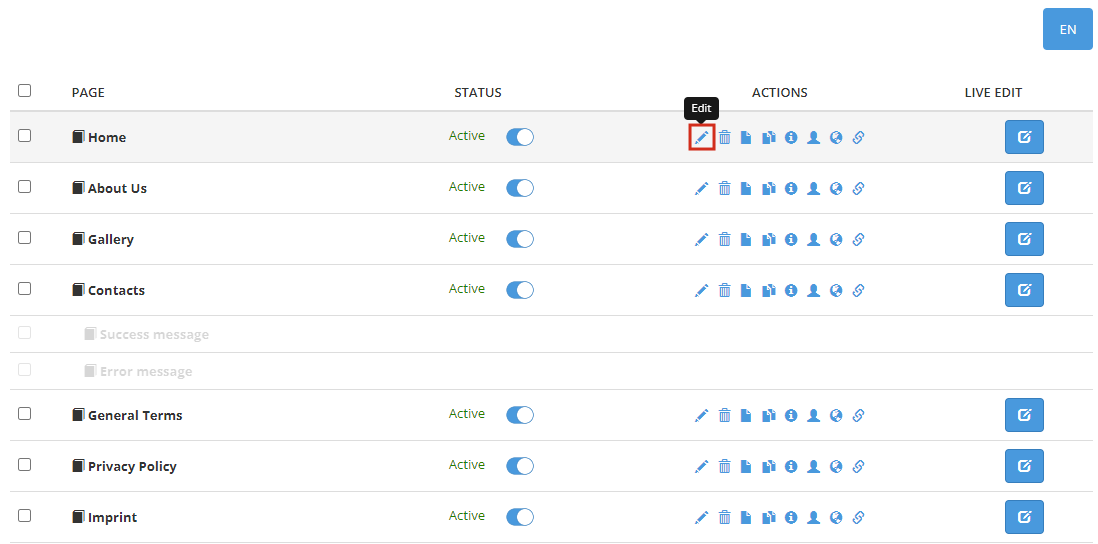
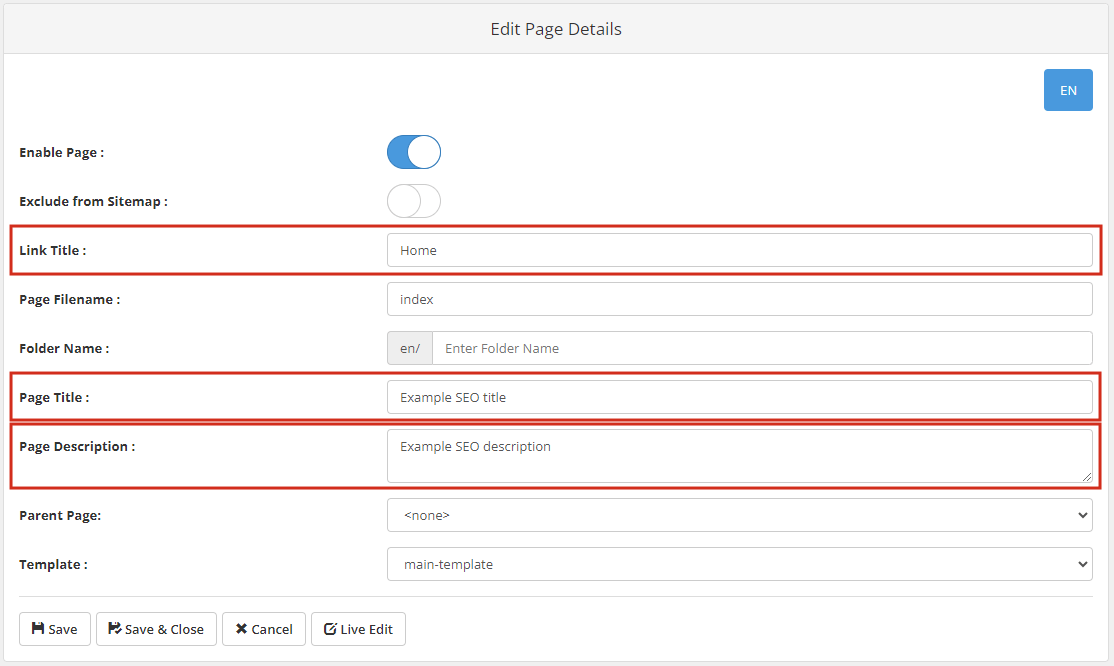
Using the page details edit option, we can change the page name and add SEO title and description.
Add a new page
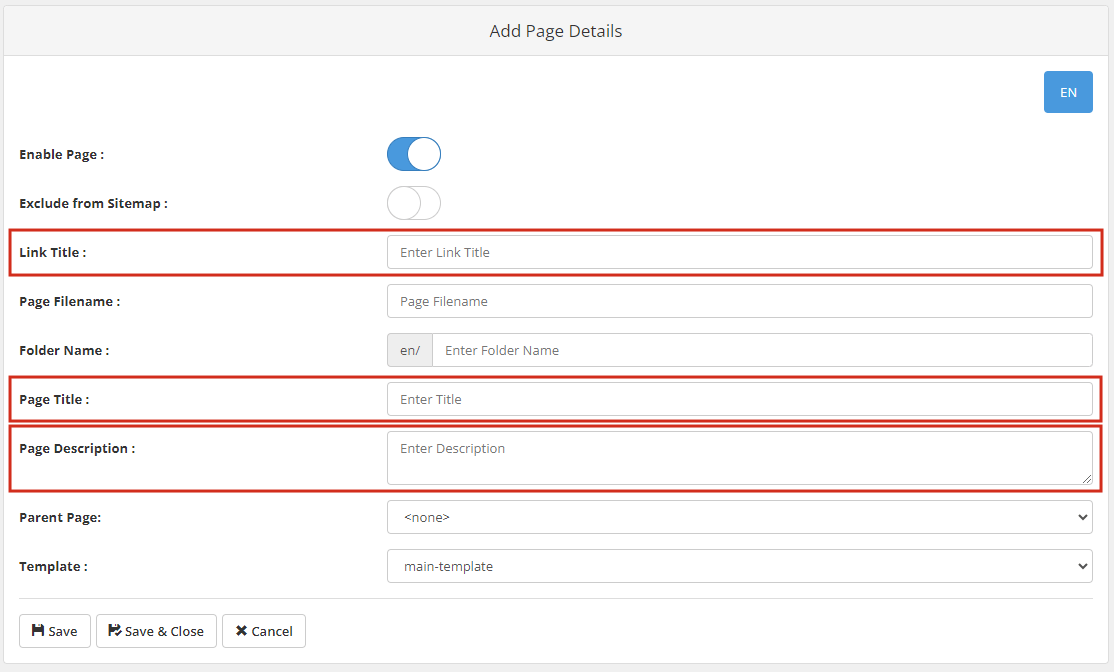
We can add a new page from the "Add page" button and then fill in the link title, SEO title and description: