
Properties
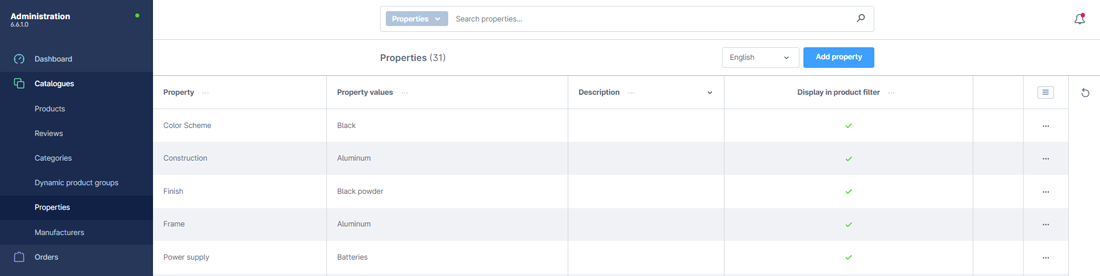
Properties are used in the online store to describe the basic characteristics of products separately from the product description. Properties provide the products with filterable information. Additionally, properties are used as a basis for generating variants. For this purpose, various properties can be created with their respective options assigned to them. For example, the "size" property could have options such as XS, S, M, L, XL, and XXL.
Properties are accessible from: Catalogs > Properties, where you can find a list of all available properties with their corresponding values.
1. Edit a Property
To the right of each row, there is a button "..." which opens a context menu for the respective property. From there, you can open, edit, or delete the property.
2. Add a Property:
By clicking the "Add Property" button, you can create a new property.
3. Property Adding Form:
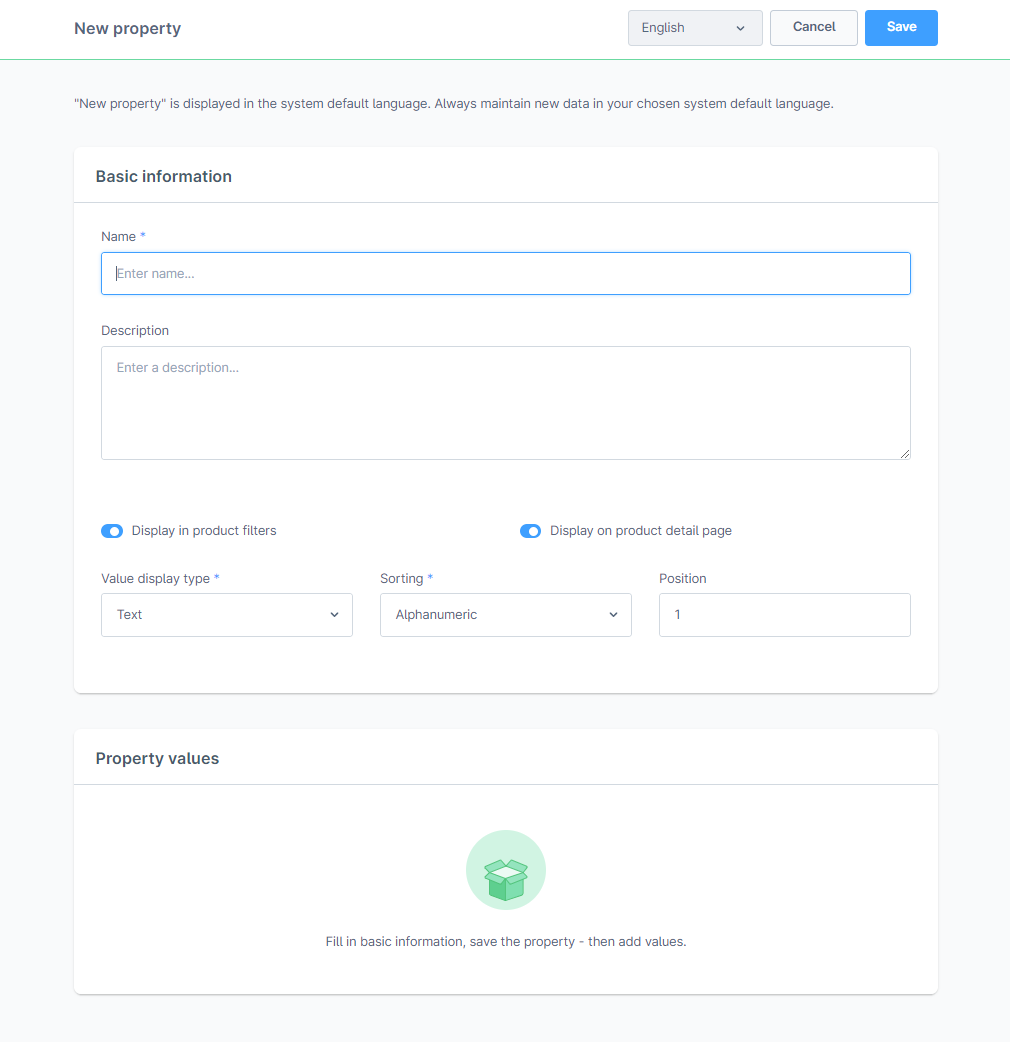
In the main information section, first enter the name of the property. The name will later be displayed, for example, for products on the product detail page. Optionally, you can also enter a brief description. After entering the basic information, click the "Save" button, and then the "Add Value" button will appear. You can use it to add options for the created property.
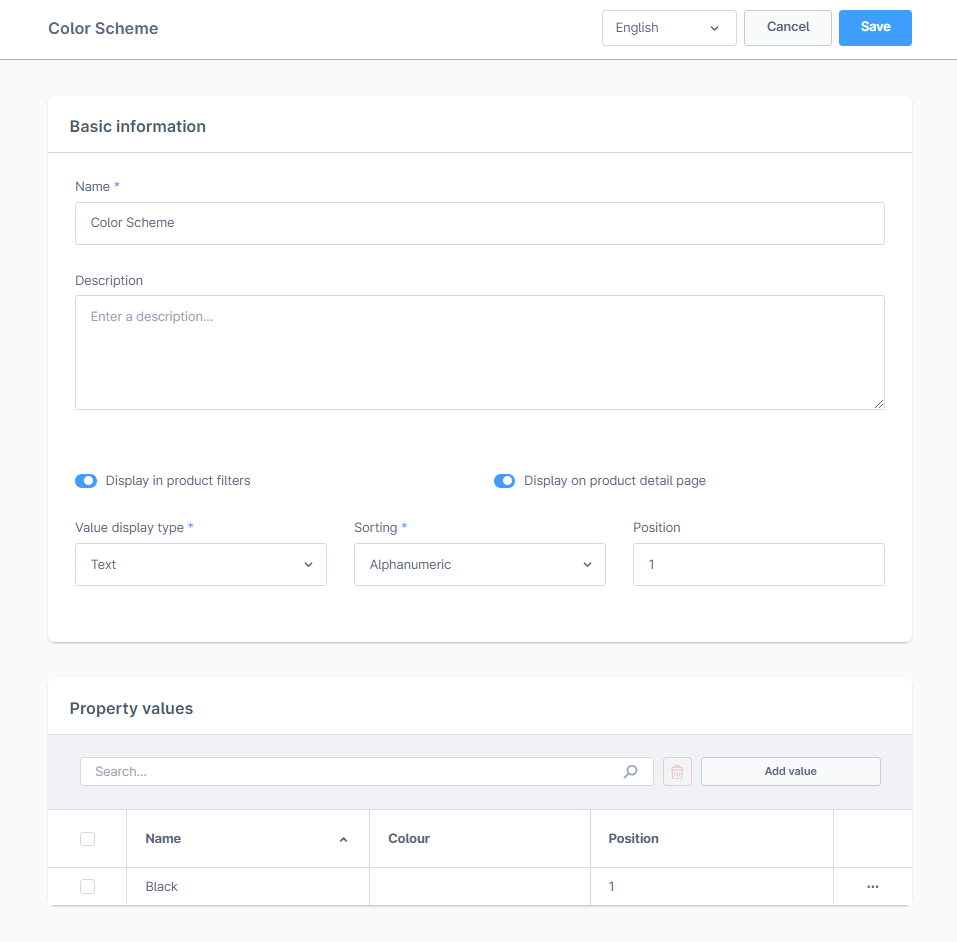
The field Name assigns textual information to the option, which will be displayed when using the text-type view of options.
Position - Used for individual sorting of options to determine their display order. The lower the value, the higher it will be shown in the list.
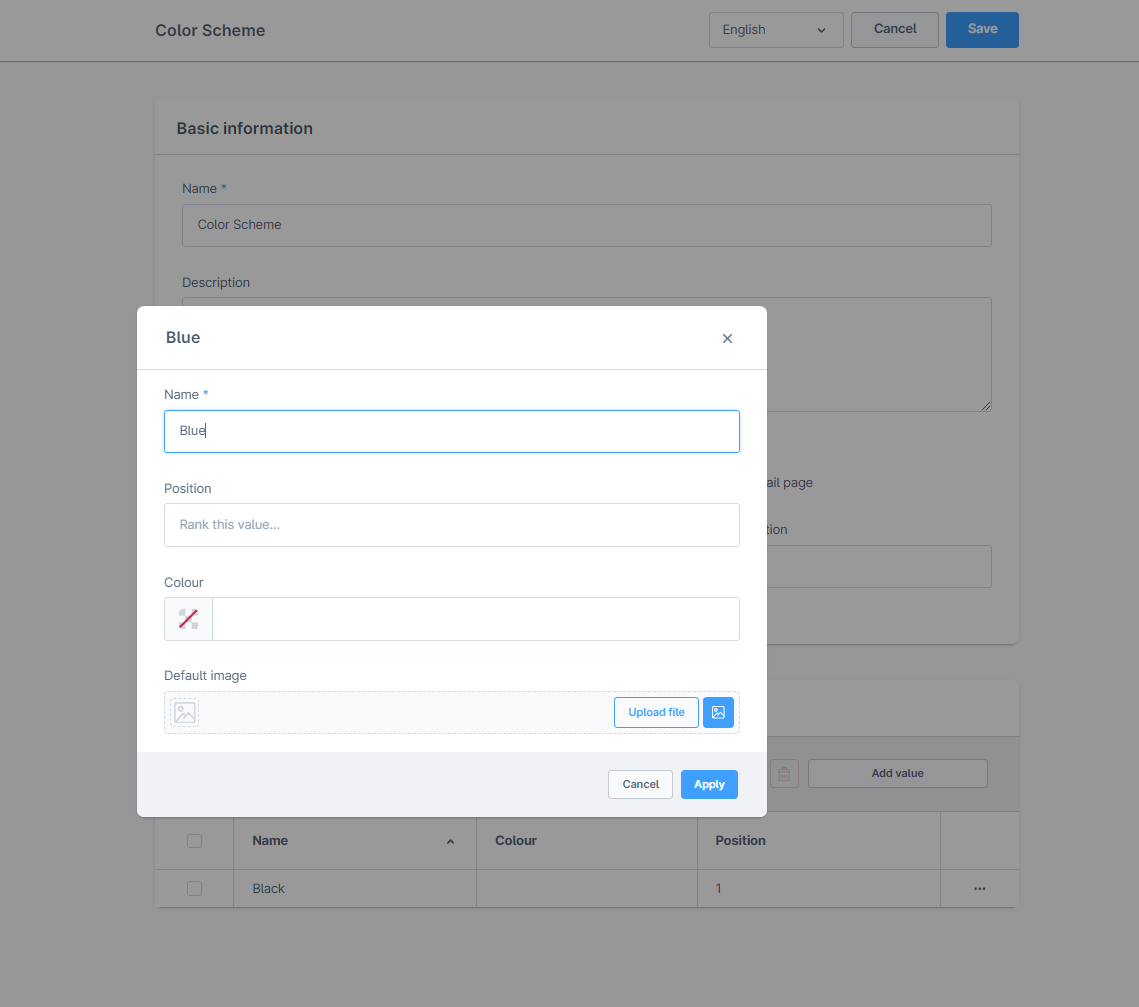
After all changes to the property have been made, select the "Save" button. The property is now saved and can be added as information to a product. More information on filling out and editing products and adding properties can be found here.
4. Property translation

To add a translation for a specific property, select the language from the dropdown menu located right next to the "Add Property" button. This will display a page similar to the property adding and editing page, where the values in the primary language of the online store are visible. (If no translations are added, the text from the primary language of the store will be displayed on the storefront.) Once all desired translations are entered into the fields, click the "Save" button.
