
Products
From the navigation on the left side of the screen, select: Catalogues > Products.
A list of already created products will be displayed, containing the most important information about them.
1. Sorting Products
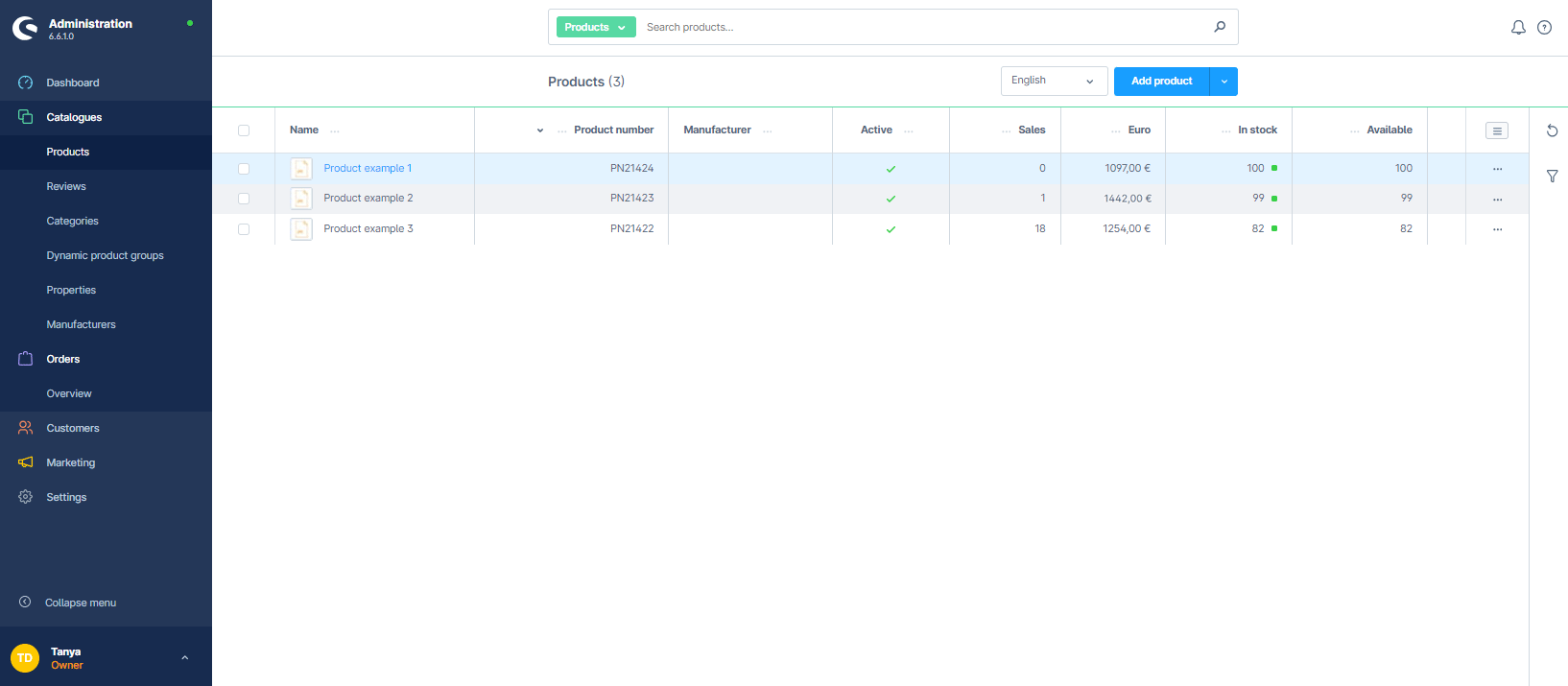
By clicking on the respective column headers, you can change the sorting of the products. To the right of the individual column headers, there is a button that can be used to hide the column.
2. Context Menu
On the right side of each product row, you can use the "..." button to open the context menu for the respective product and access additional functions.

- Edit: Clicking the edit button opens a page to edit the product. Additional information about individual product fields is available in the article "Adding a New Product."
- Duplicate: This option allows you to copy an entire product, making it easy to create several similar products quickly. By default, the new product is created with the next sequential product number and the word "copy" after the name.
- Delete: A product can be deleted by selecting this option.
3. Bulk edit
Bulk edit provides an easy and fast way to change multiple products simultaneously.

You can select individual products or all products displayed on the current page. Additionally, products from multiple pages can be selected. The maximum number of products that can be selected simultaneously is 1000. The number of currently selected products is displayed above the product list.
The option to deselect all products is shown only if products from multiple pages are selected.
Performing Group Actions:
- To edit selected products, choose Bulk edit.
- To delete all selected products, choose Delete.
Once Bulk edit is selected, a window opens showing the selected items.
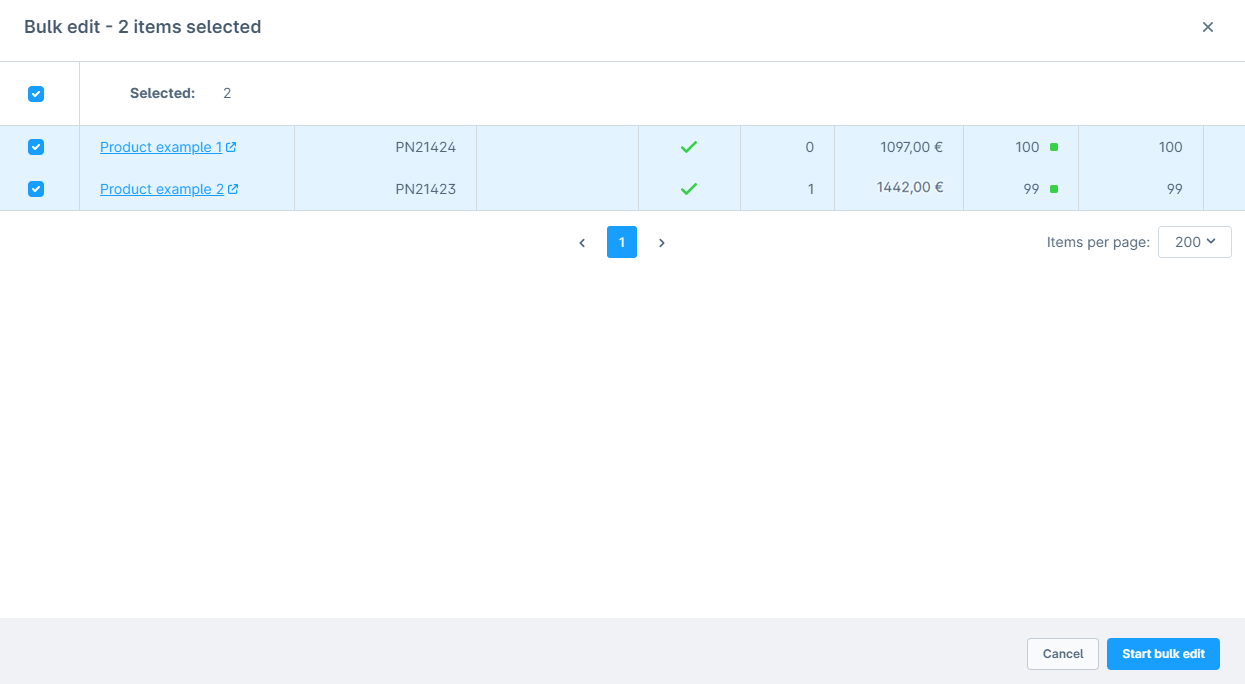
In this view, you can remove products from the current list of selected items. To proceed with editing, click Start bulk edit.
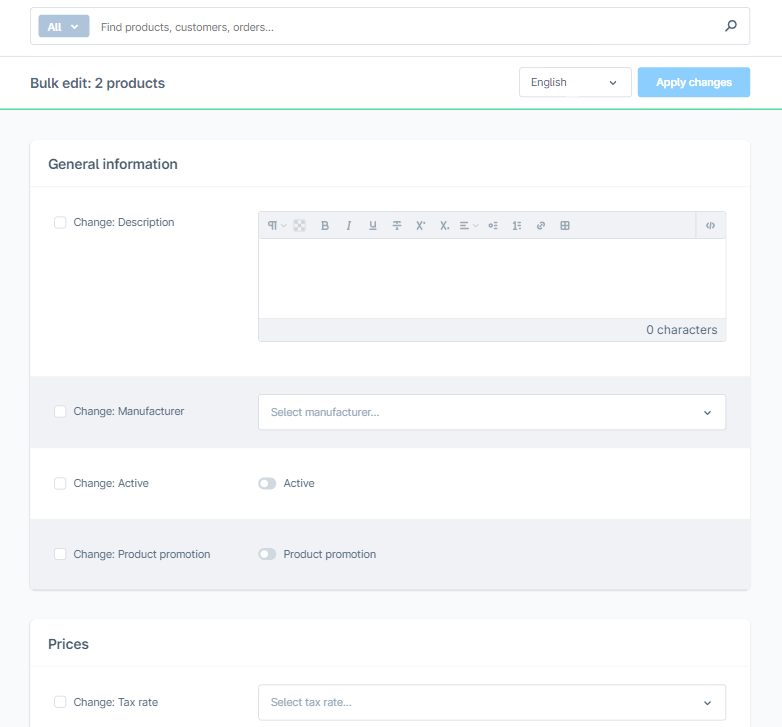
- Information that needs to be changed is marked with a checkmark.
- The values for all selected products are updated simultaneously by filling in the new information in the fields of the selected types of information.
- Click Save Changes to proceed. (The desired changes will be applied to all selected products, but only for the values that have a checkmark.)

There are several options for applying changes, which can be selected for all different product properties and will be applied equally to all selected products:
Overwrite: Previous information will be replaced with the newly selected information.
Clear: Removes all settings and information from this block.
Add: Only selected settings are added to the variants. Existing settings will not be removed.
Remove: Removes the selected settings from the variants if they existed in the variants.

A pop-up window will appear showing the number of items to be changed. To confirm, select Apply changes.

